Merge PDF OnlineCombine Multiple PDF Files
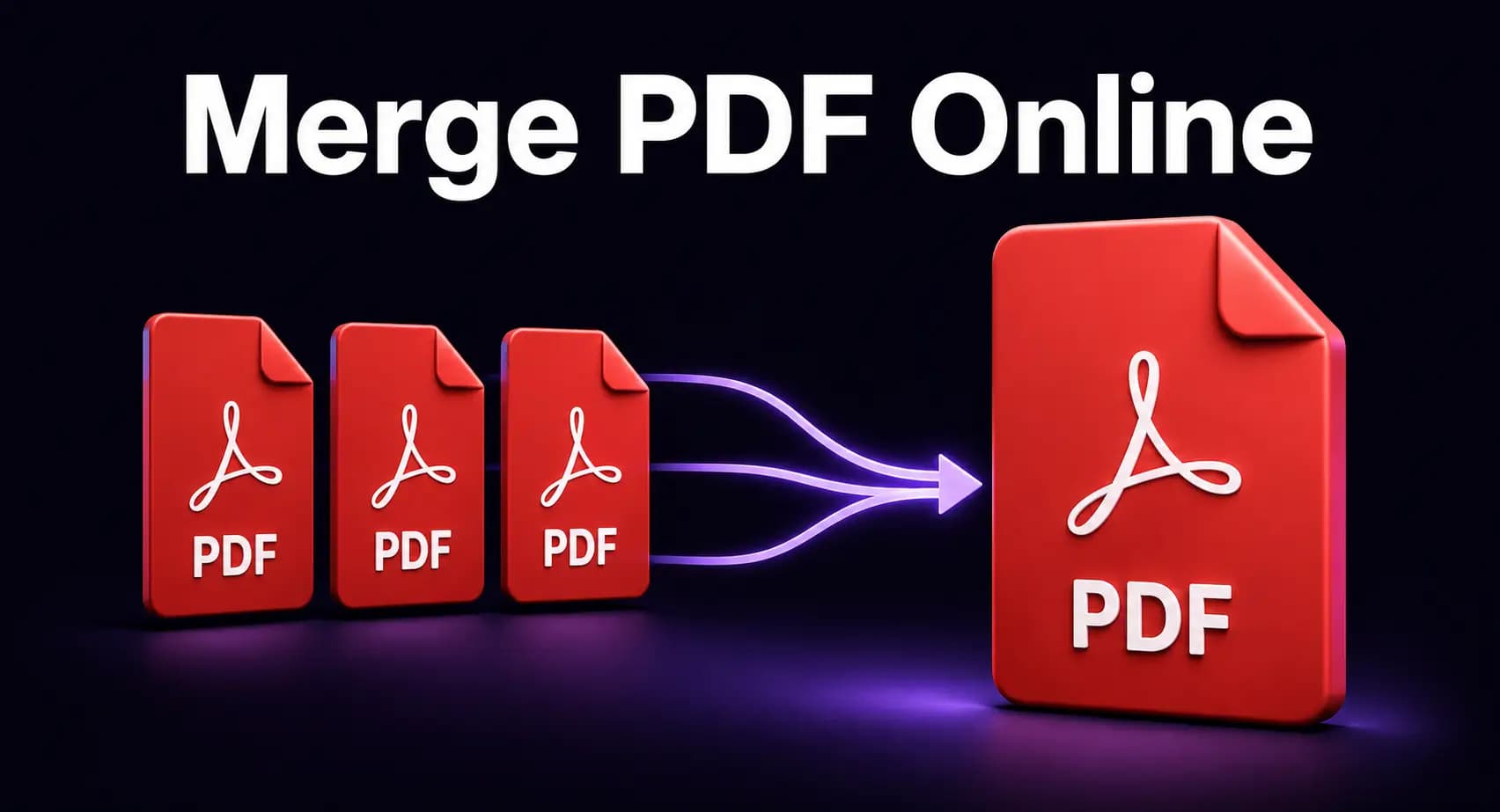
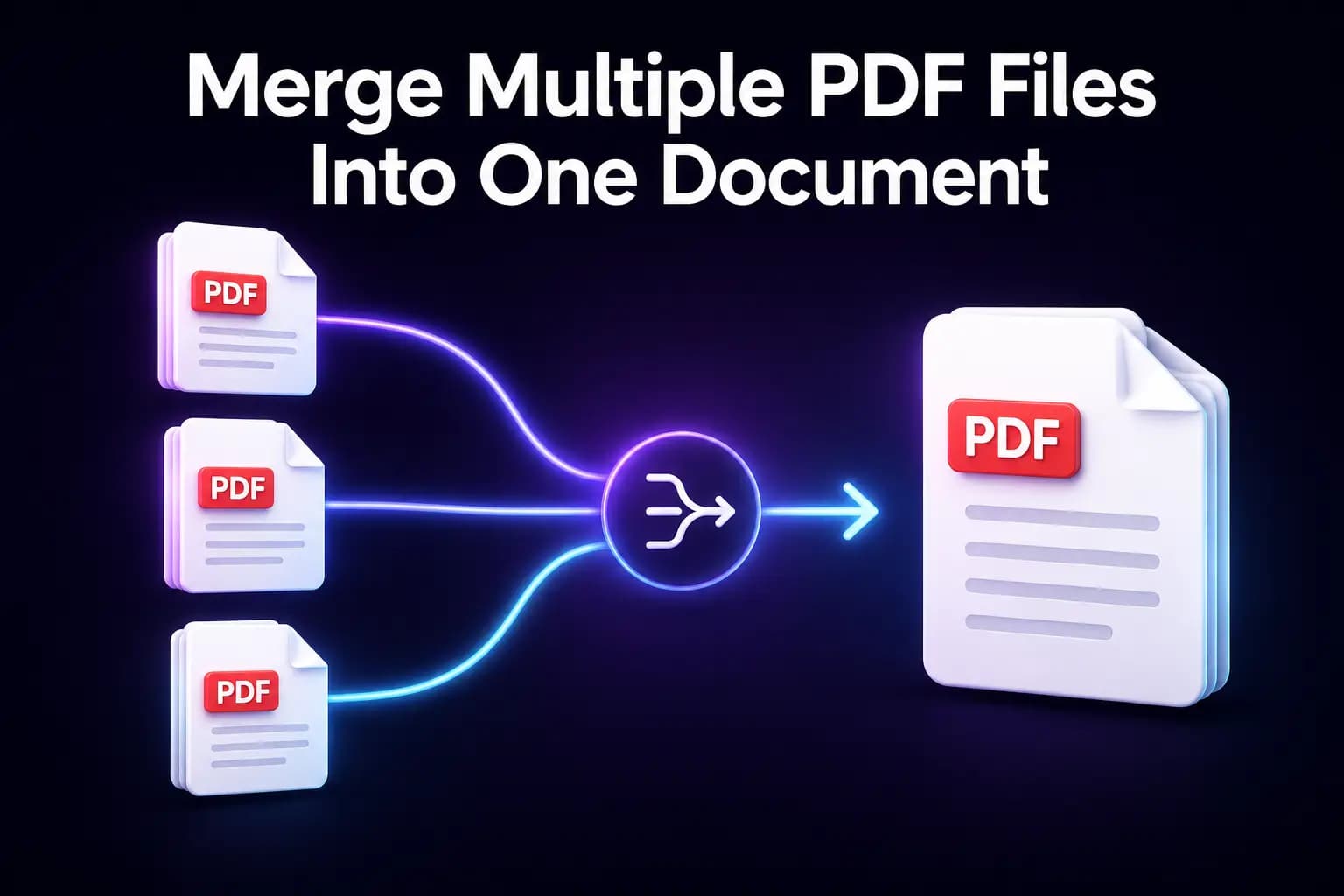
Use our Merge PDF tool to combine two or more PDF files into one organized document. Free, no account. Upload your PDFs, place them in the required order, start the merging process, and download the completed file.
- Input: PDF files
- Free · no account · download one combined PDF
or drop your PDF files here
No file selected yet.
Upload only files that you own or have permission to process.
Merge Multiple PDF Files Into One Document
How to Merge PDF Files Online
Follow these steps to combine your PDF documents.
Upload Your PDF Files
Select Choose PDF Files and locate the documents on your phone, tablet, or computer. Choose the PDFs you want to include in the final file.
If drag-and-drop uploading is available, you can move the documents directly into the upload area.
Check that each selected file is a valid PDF. Renaming another file type and adding a .pdf extension does not turn it into a working PDF document.
Arrange the PDFs
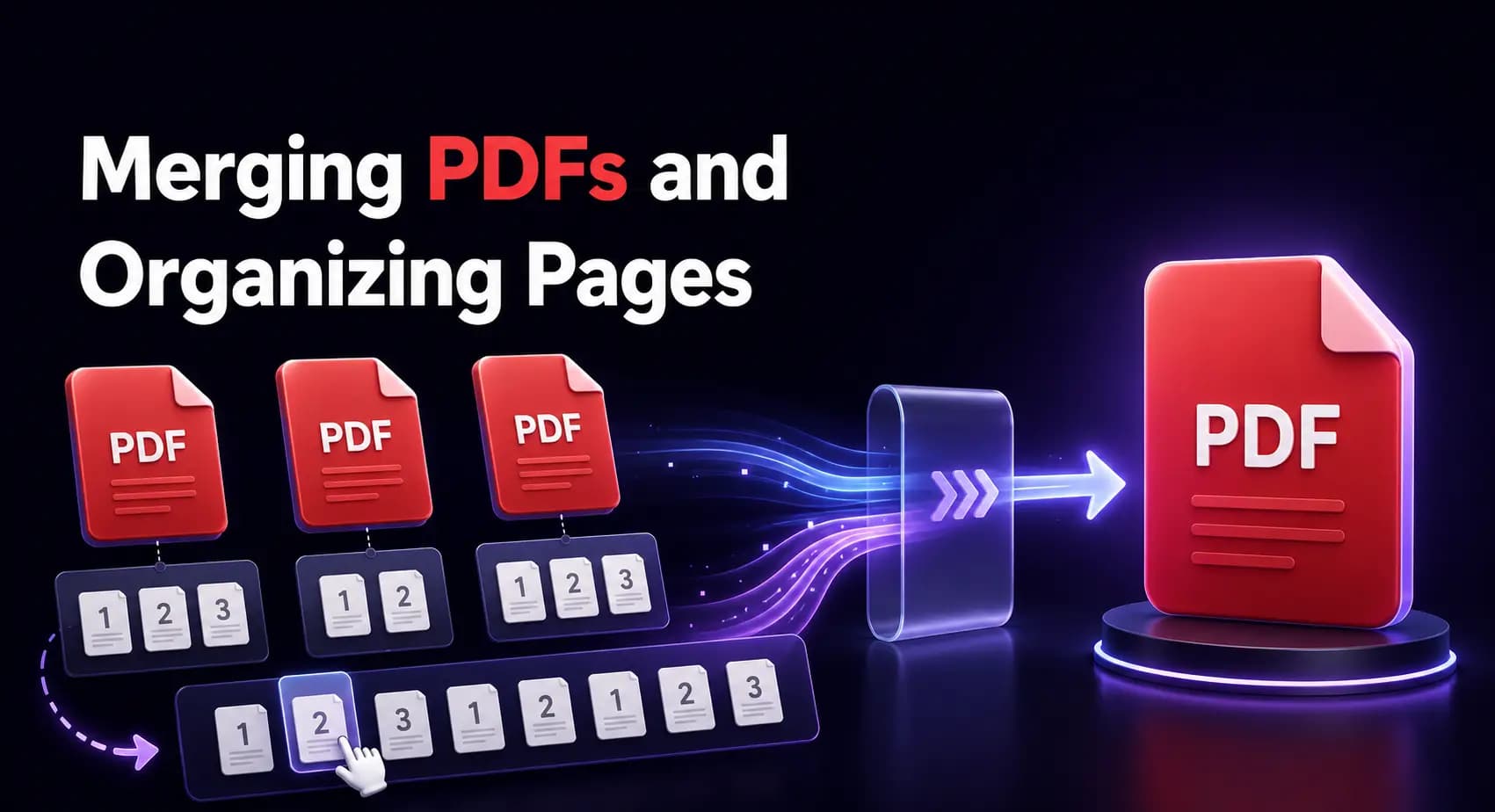
Place the uploaded files in the order they should appear. The pages from the first PDF will normally come first, followed by the pages from the second file and the remaining documents.
Review filenames and page previews carefully. This is especially important when combining forms, numbered chapters, scanned records, or application documents.
Remove Unwanted Files
If you selected the wrong PDF, remove it from the list before starting the process. Check that no file is missing or included twice.
Removing an uploaded file from the merge list should not delete the original document stored on your device.
Start Merging the PDFs
Select Merge PDF when the files are in the correct order. Keep the browser tab open while the documents are being uploaded and combined.
Larger documents and files containing many pages or high-resolution images may require more processing.
Download the Combined PDF
When the merged file is ready, select Download PDF. Your browser may save it automatically or ask you to choose a storage location.
Open the final PDF and check the page order before sharing, printing, or submitting it.
When Is It Useful to Combine PDF Files?
Arrange PDFs Before Merging
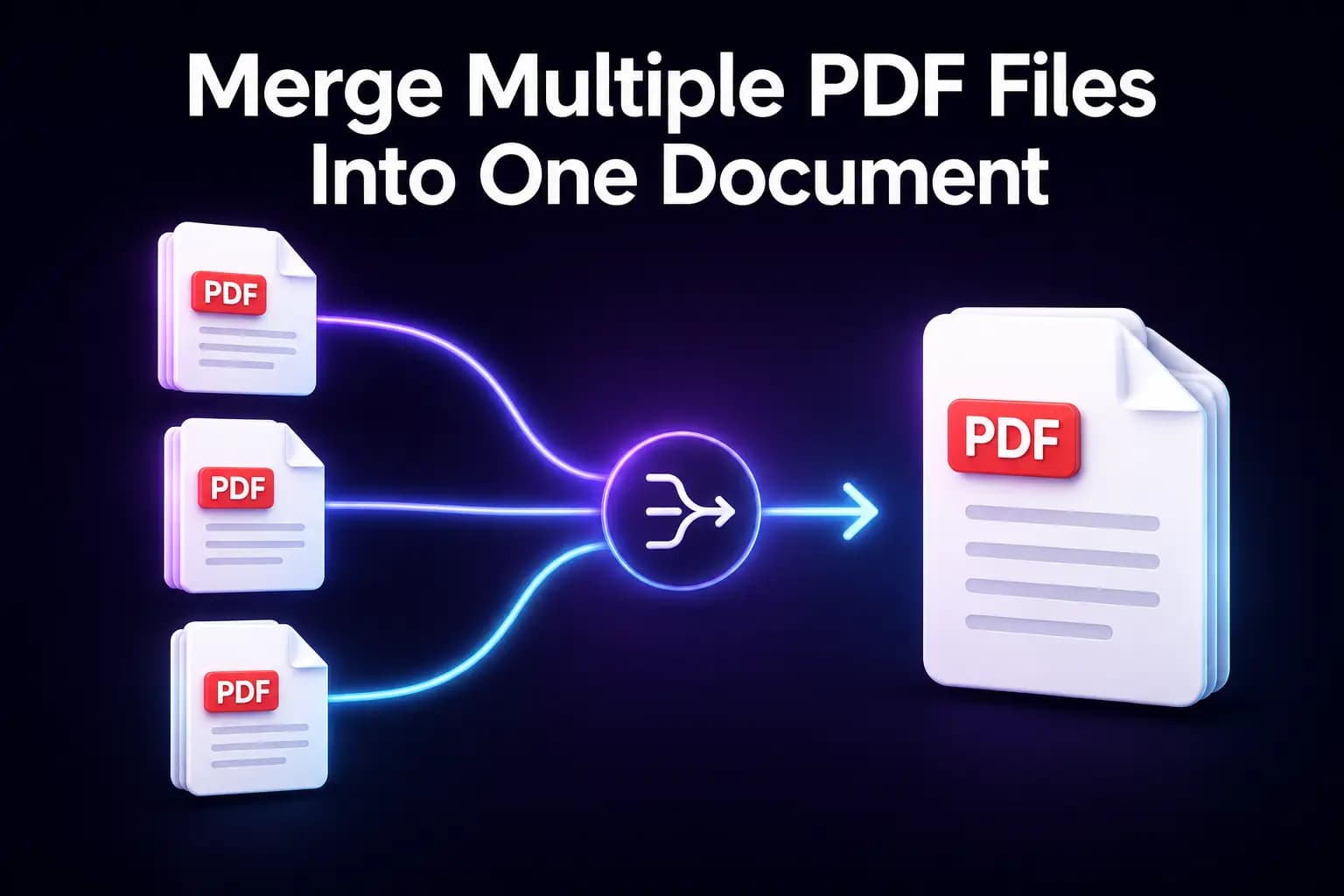
The page order in the final document depends on the order of the uploaded files. A mistake at this stage can place a cover page, attachment, or chapter in the wrong position.
Before merging, consider naming the source documents clearly:
- 01-cover.pdf
- 02-application.pdf
- 03-certificates.pdf
- 04-supporting-documents.pdf
Numbered filenames make it easier to recognize the intended sequence.
After arranging the files, confirm:
- The first document starts correctly.
- Every required PDF is included.
- No document appears twice.
- The final attachment is in the correct place.
- Confidential pages have not been added accidentally.
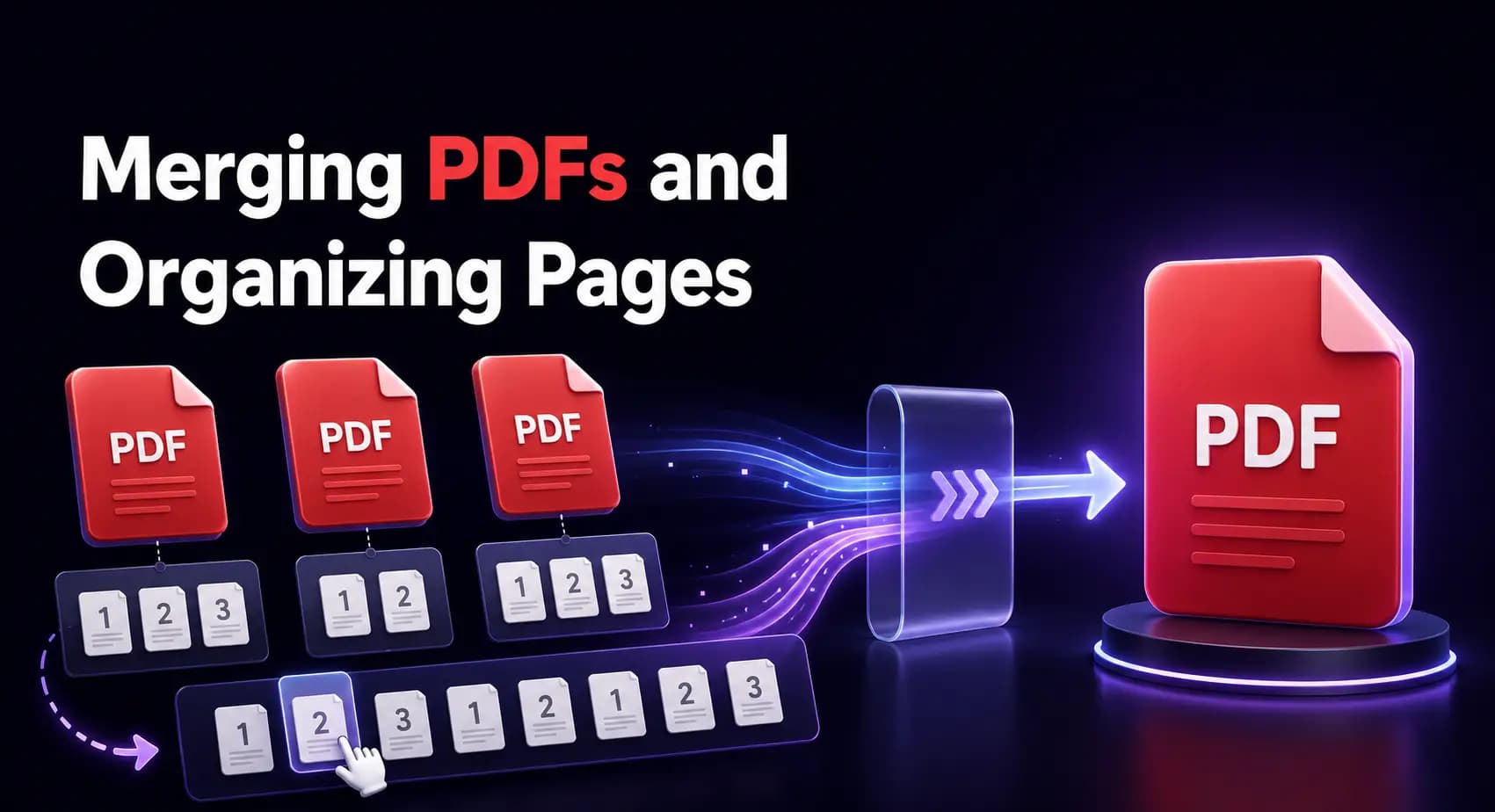
Merging PDFs and Organizing Pages
Does Merging Change PDF Quality?
What Happens to Bookmarks, Forms and Links?
PDF files can contain more than visible text and images. Some documents include:
- bookmarks;
- internal page links;
- external hyperlinks;
- comments;
- form fields;
- digital signatures;
- attachments;
- password protection.
The way these elements behave after merging depends on the tool and the structure of the original files.
Digitally signed PDFs require special care. Combining or changing a signed document can make an existing signature appear invalid because the file has been modified.
If signatures, interactive forms, bookmarks, or attachments are important, test the merged PDF before using it officially.
Frequently Asked Questions
Merge your PDF files
Upload the documents, set the order, and download one PDF. Free, no account.